Business Management Platform
Version: 1.0.X
Last Updated: October 2025
Overview
The Business App is a web application designed for managing powerbank rental stations. It provides business owners with tools to monitor stations, track live rentals, manage events, and update business information.
Getting Started
Logging In
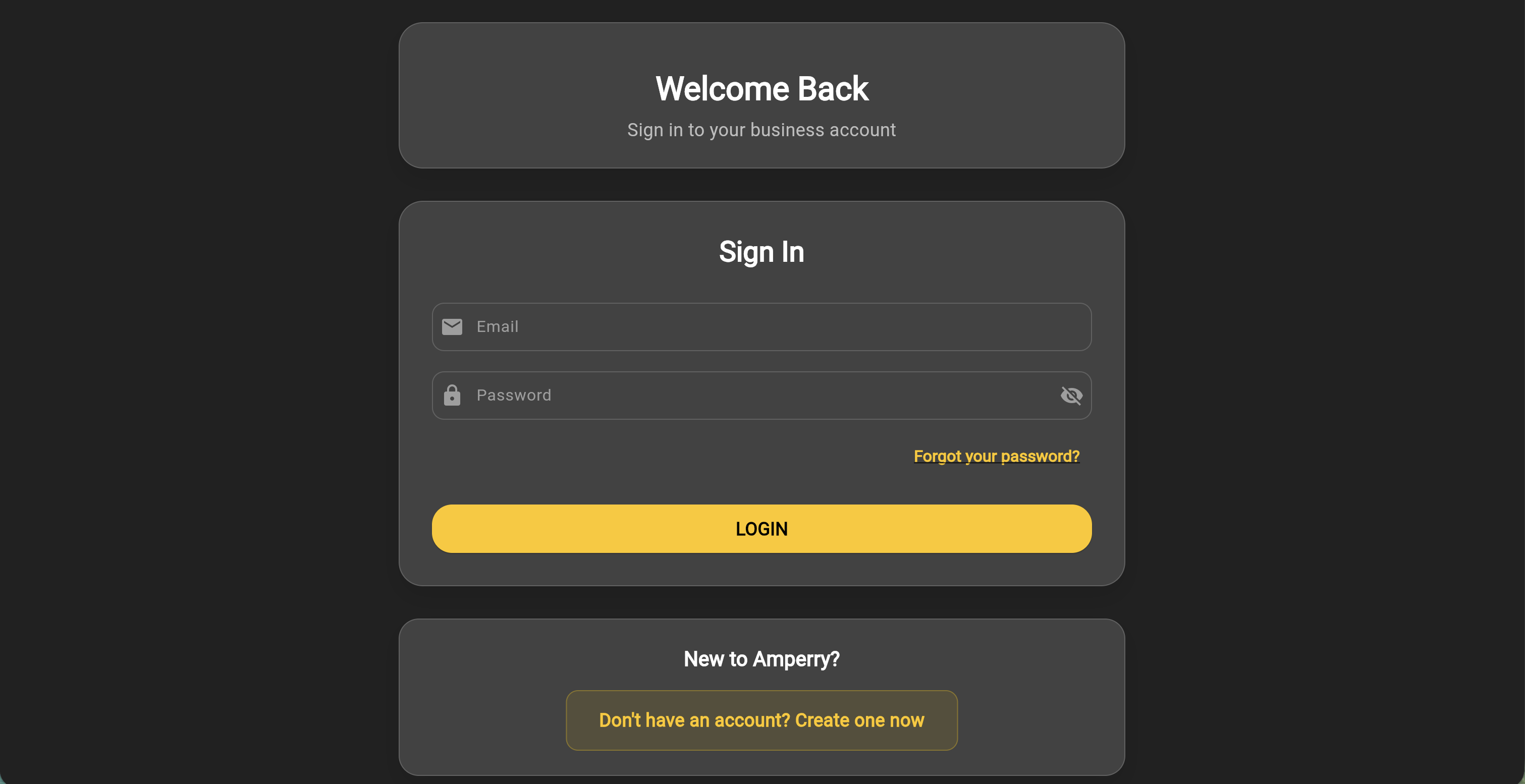
To access the platform:
- Navigate to business.amperry.me
- Enter your email address (registered business account)
- Enter your password
- Click Login button
Note: If you've forgotten your password, click "Forgot Password?" to reset it.
Registration
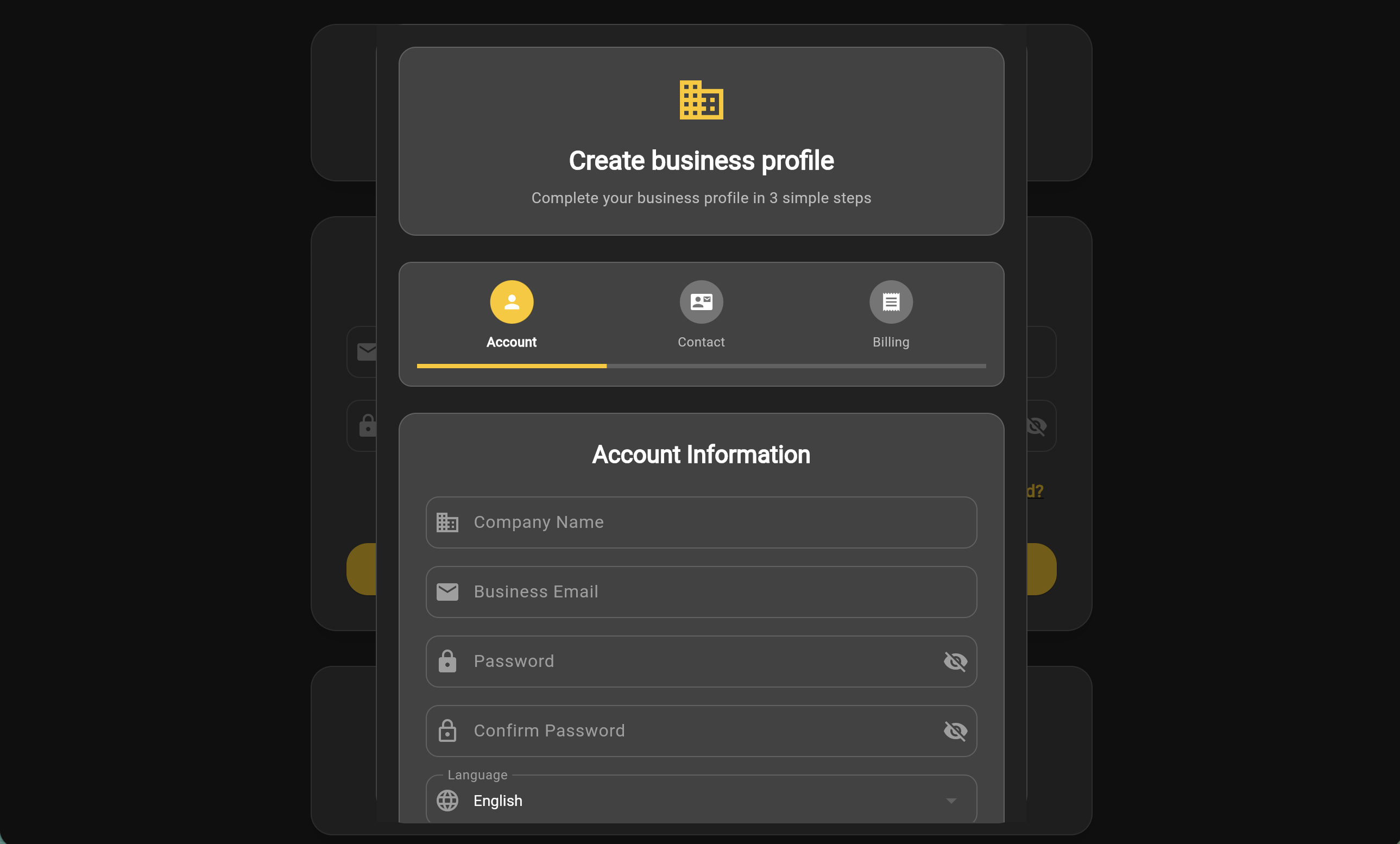
New business accounts can register by:
- Click "No account? Create new account" link on login page
- Fill in all required business information
- Submit the registration form
- Your account will be activated by an administrator
Navigation
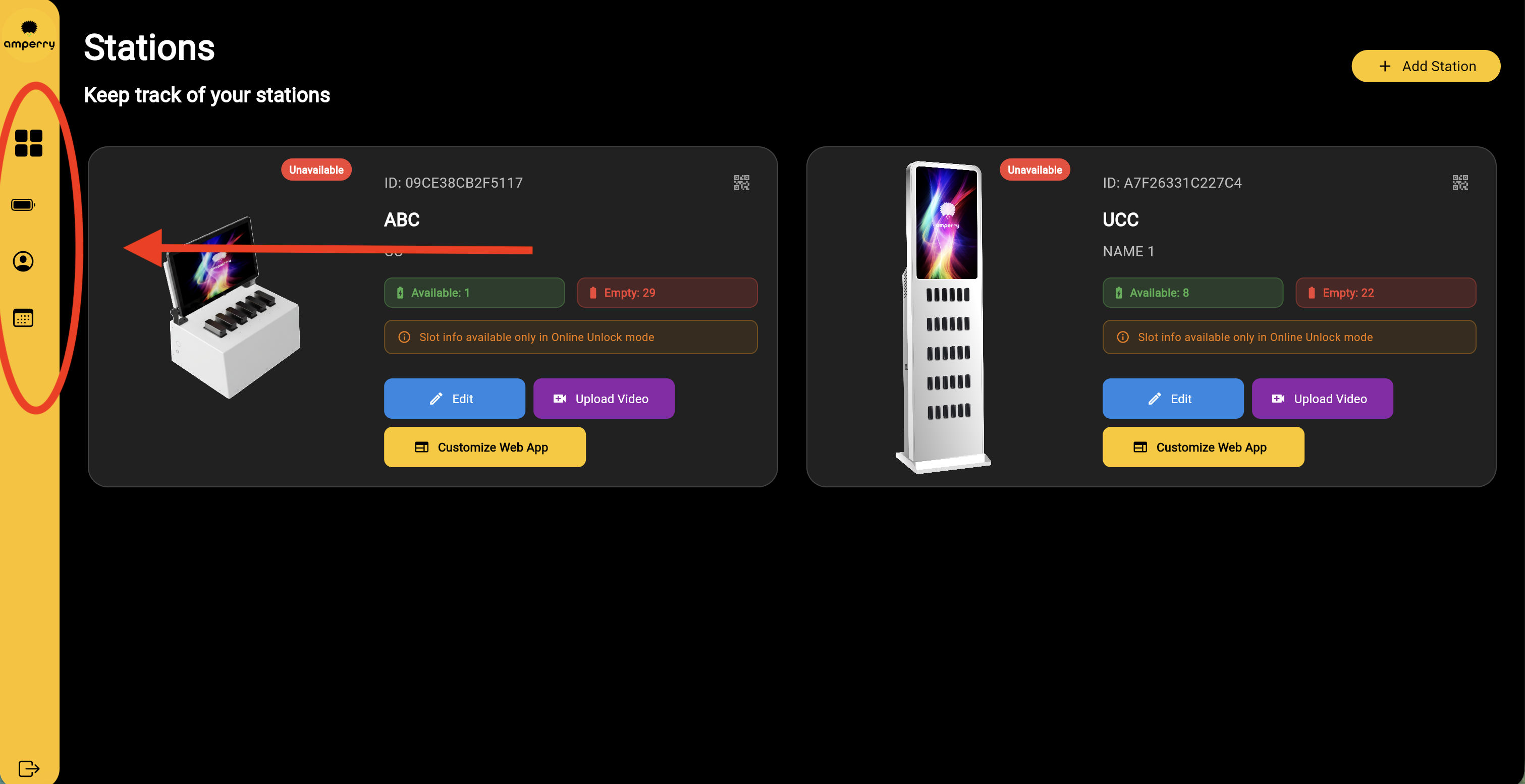
The app has 5 main sections accessible via sidebar (desktop) or bottom navigation (mobile):
- Stations (Grid icon) - Manage charging stations
- Live Rentals (Battery icon) - Monitor active rentals
- Profile (Person icon) - View and edit business information
- Promotions (Tag icon) - Create and manage discount codes
- Events (Calendar icon) - Create and manage events
Sections
1. Stations
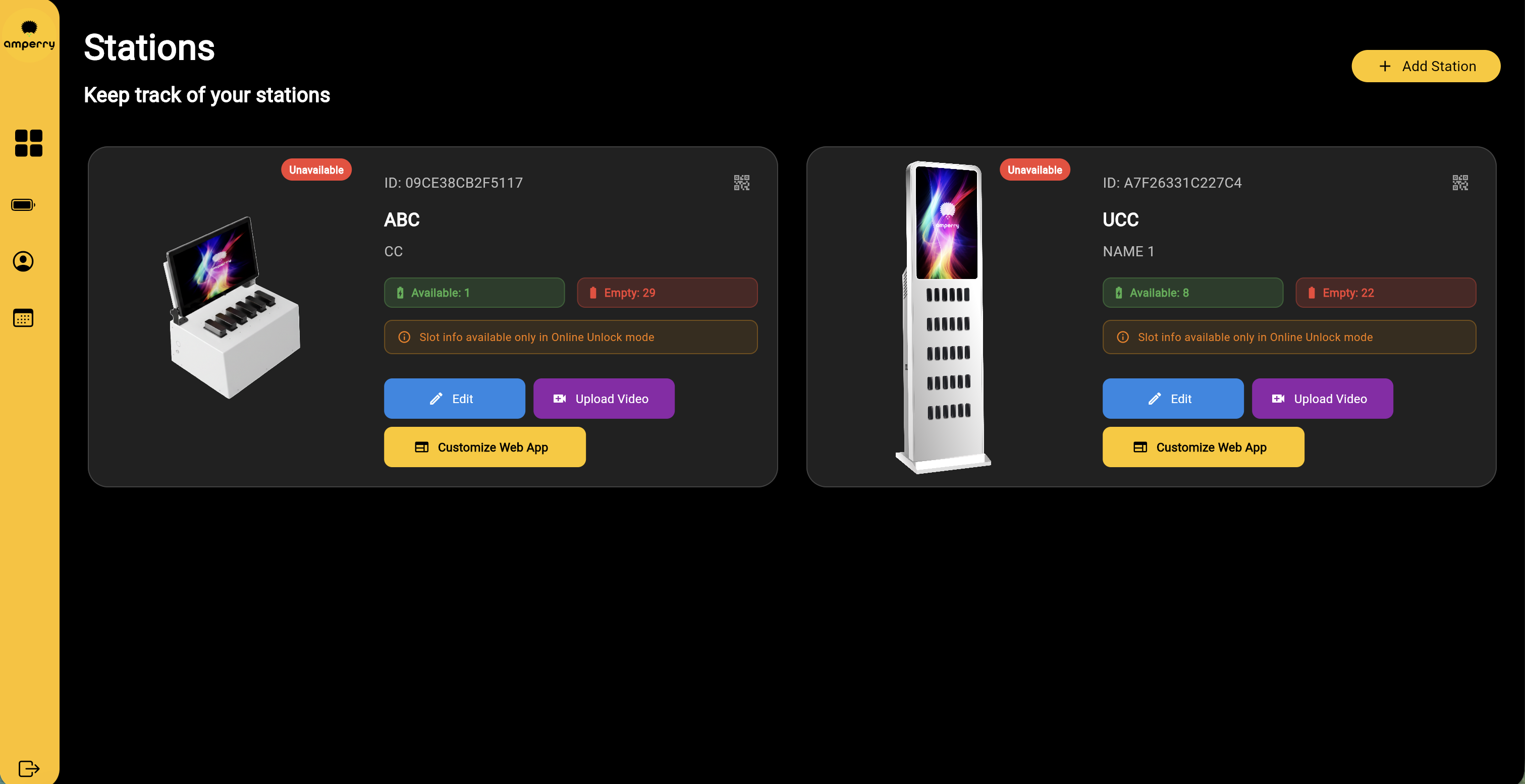
What it does: View all charging stations assigned to your business.
How to use:
- View Stations: All your stations appear as cards on the page
- Station Information: Each card shows:
- Station name
- Location/address
- Number of available powerbanks
- Status (online/offline)
Adding New Stations:
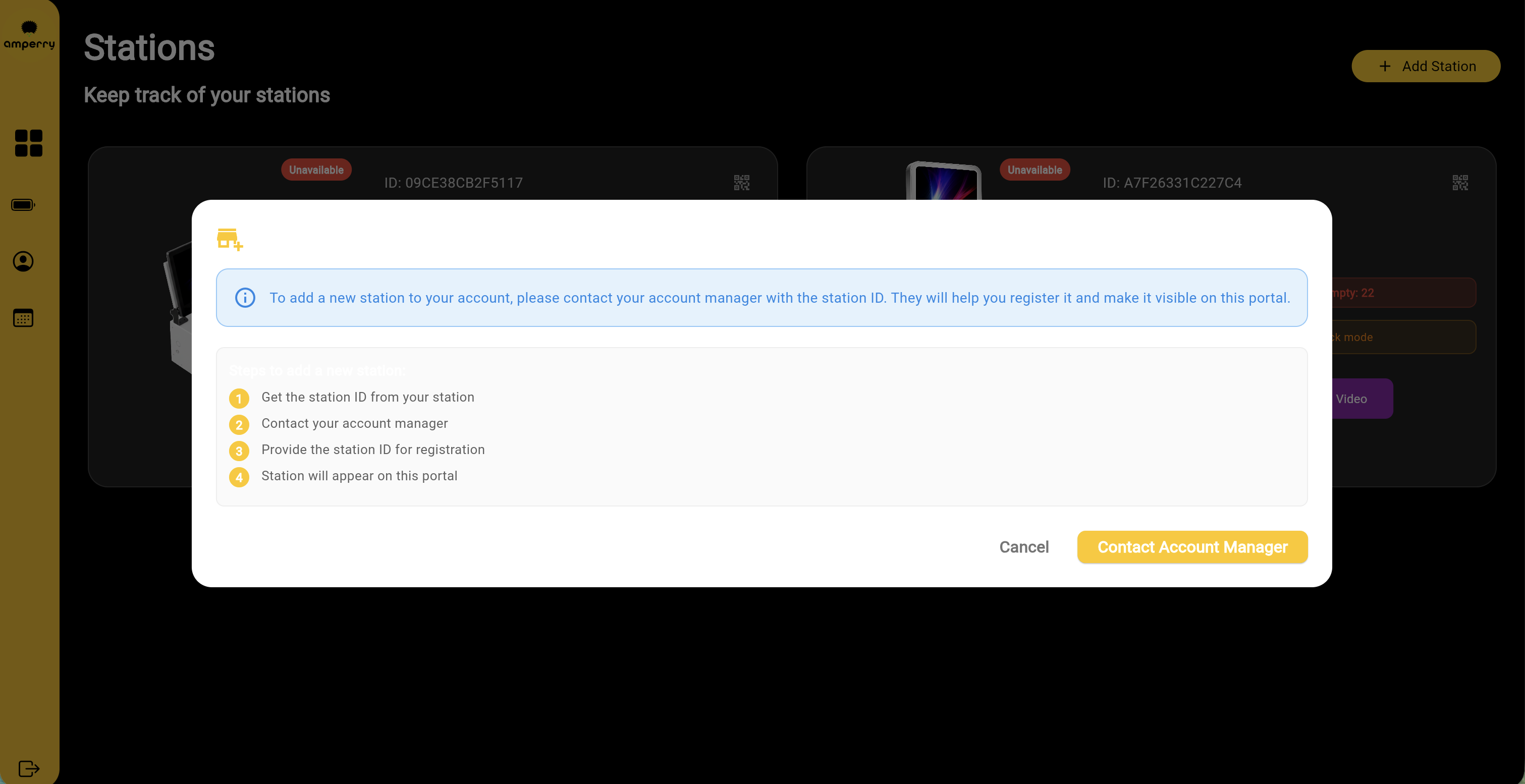
- Click "Add Station" button
- Contact your account manager with your Station ID
- They will add the station to your account
Station Actions:
- Upload Video: Add promotional video for the station
- Customize Web App: Customize the station's web interface
- Edit Station: Update station details
2. Live Rentals
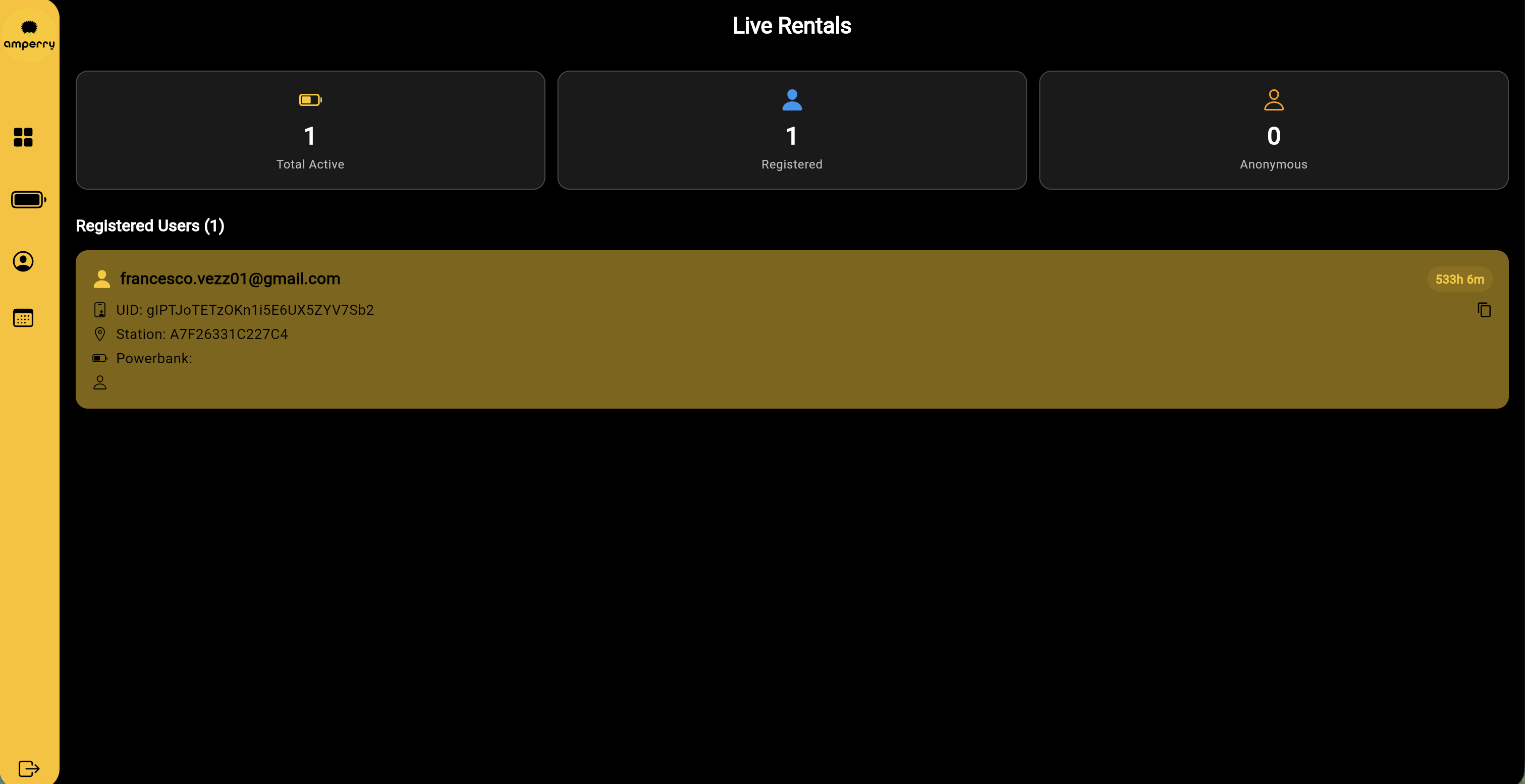
What it does: Monitor all currently active powerbank rentals from your stations.
How to use:
- View Active Rentals: See all powerbanks currently rented by users
- Summary Cards: View counts at the top:
- Total Active rentals
- Registered users count
- Anonymous users count
User Information Displayed:
For each rental, you can see:
- User details (if registered)
- Station location
- Rental start time
- Powerbank status
Filtering:
- Registered users are listed separately from anonymous users
3. Profile

What it does: View and manage your business account information.
How to use:
Viewing Information:
The profile displays 4 main sections:
-
General
- Business ID
- Business Name
- Email Address
- Physical Address
-
Contacts
- Contact Person Name
- Contact Email
-
Billing
- P.IVA (Tax ID)
- Business Name (legal)
- Unique Code
-
Language
- Preferred language (English/Italian/German)
Editing Information:
- Click "EDIT DATA" button at the bottom
- Modify the fields you want to change
- Select your preferred language from dropdown
- Click "SAVE CHANGES" to update
4. Promotions
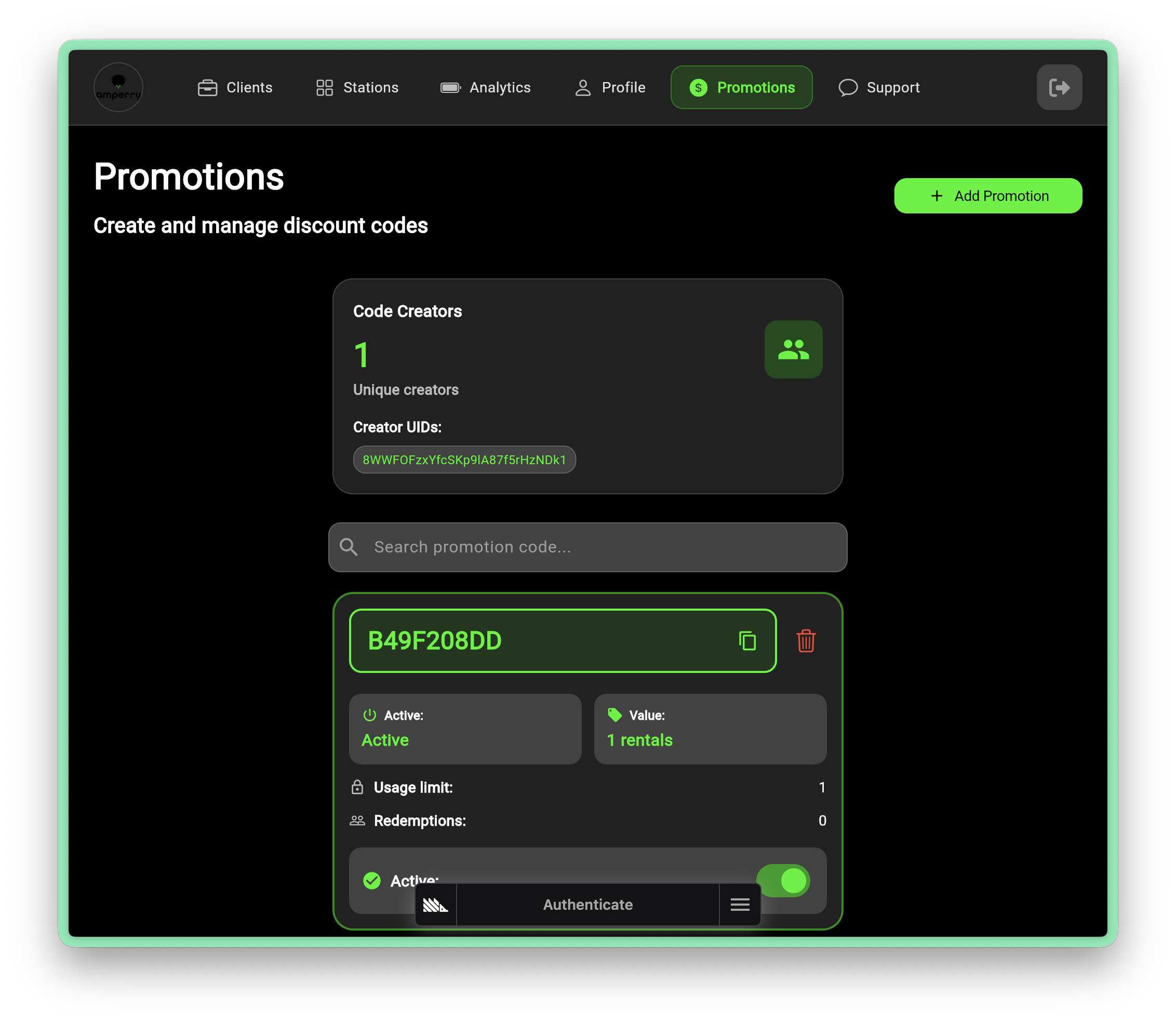
What it does: Create and manage discount codes that give users free 24-hour powerbank rentals.
Each promotion code can be shared with customers, event attendees, or used in marketing campaigns. When a user redeems a code, they receive the configured number of free rentals.
How to use:
- View Promotions: All created codes appear as cards showing code, status, usage limit, and redemption count
- Add a Promotion: Click the + Add Promotion button in the top-right corner
Creating a Promotion
A Create Promotion dialog will appear. All promotions share the following settings:
- Active toggle — Enable or disable the code. Inactive codes cannot be redeemed by users.
- Value in rentals — The number of free 24-hour rentals granted when the code is redeemed.
Then choose one of two Promotion Types:
Single Use
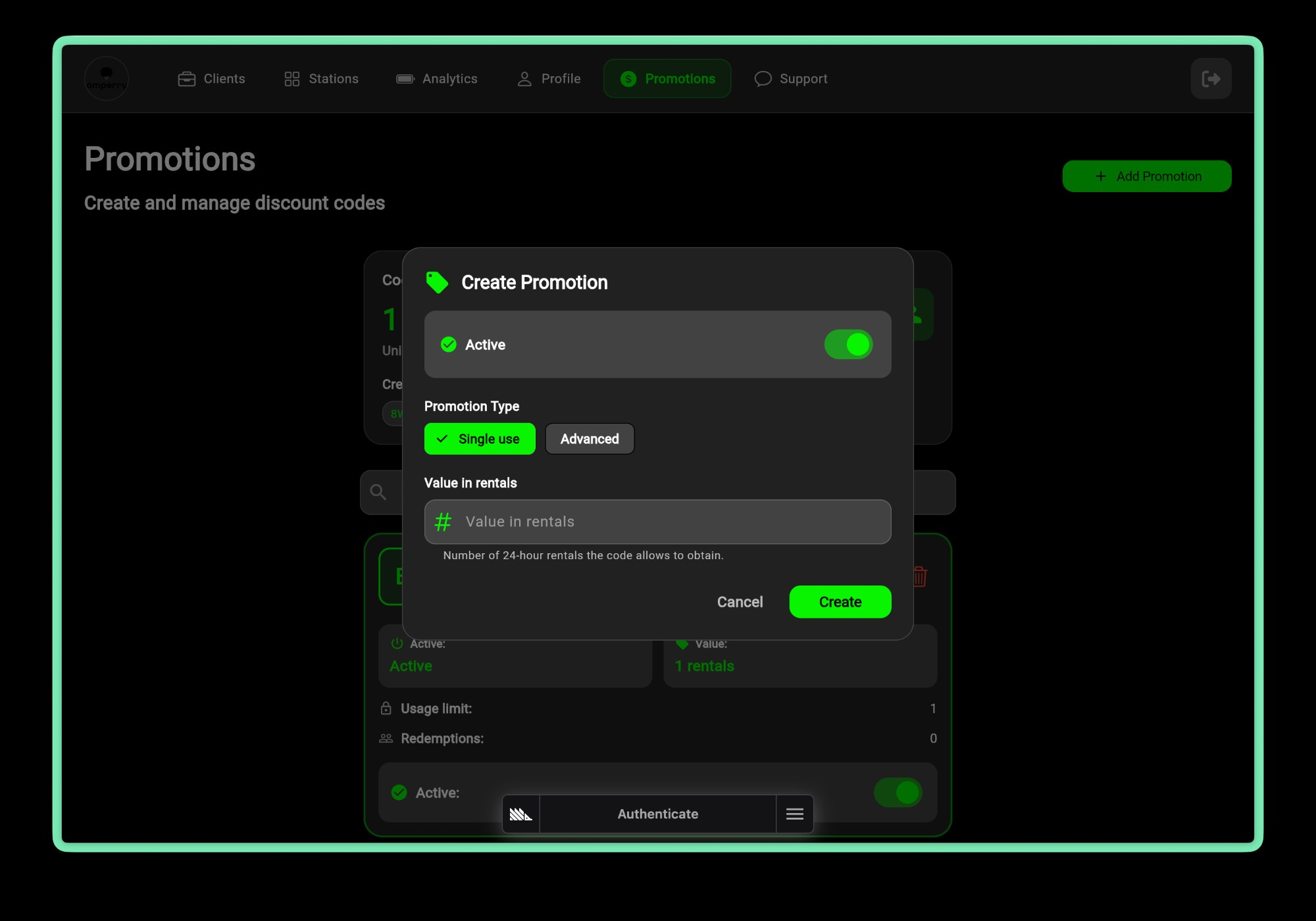
The simplest type. A single-use code is automatically generated and can be redeemed once by one user.
Steps:
- Select Single use (selected by default)
- Enter the Value in rentals (e.g.,
1grants one free 24-hour rental) - Click Create
The system generates a unique code automatically. Share it with the intended recipient — once redeemed, the code becomes inactive.
Advanced
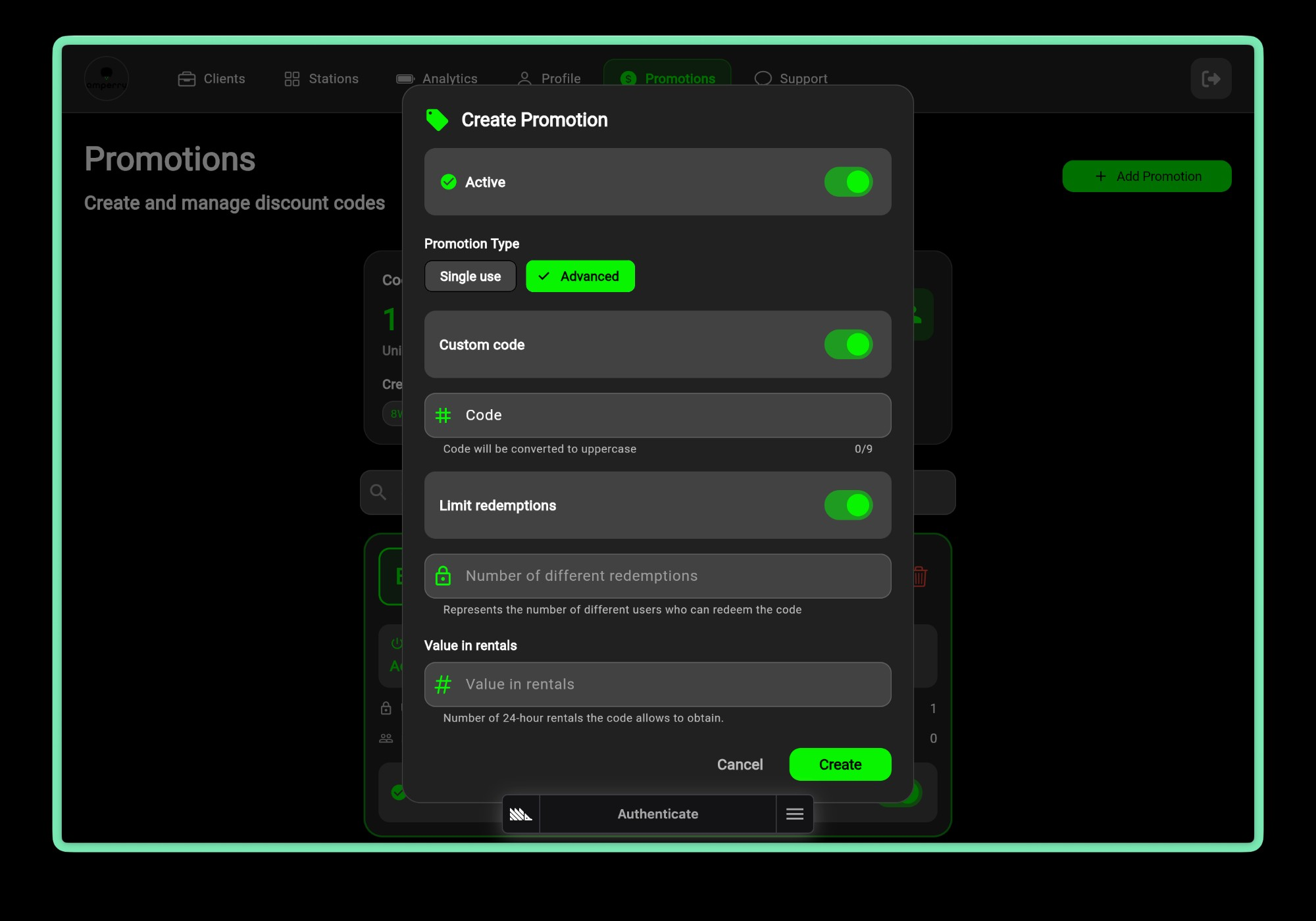
The advanced type gives you full control over the code format and how many users can redeem it. Ideal for events, partnerships, or marketing campaigns.
Additional fields:
| Field | Description |
|---|---|
| Custom code toggle | When enabled, lets you define your own code string (e.g., WELCOME, EVENT24). When disabled, the system generates one automatically. |
| Code input | Your custom code — max 9 characters, automatically converted to uppercase. |
| Limit redemptions toggle | When enabled, restricts how many different users can redeem the code. |
| Number of different redemptions | The maximum number of distinct users allowed to redeem the code. |
Steps:
- Select Advanced
- (Optional) Enable Custom code and enter your desired code text
- (Optional) Enable Limit redemptions and enter the maximum number of users
- Enter the Value in rentals
- Click Create
Use a custom code like EVENTO2025 combined with a redemption limit when running an event — you can share one code publicly and control how many people can use it.
Promotion Card Details
Each promotion in the list displays:
- Code — The promotion code string
- Active — Whether the code is currently active
- Value — Number of rentals granted (e.g.,
1 rentals) - Usage limit — Maximum number of redemptions (or unlimited)
- Redemptions — How many times the code has been redeemed so far
5. Events
This section is currently being developed. Detailed documentation for the Events feature will be available soon.
What it does: Create and manage business events for your powerbank stations.
Events allow you to schedule special promotions, maintenance periods, or other business activities that affect your powerbank rental stations. The full feature documentation is coming soon.
Sign Out

To sign out:
- Click the exit icon in the sidebar (desktop) or navigate to profile
- A confirmation dialog appears
- Click "Exit" to confirm sign out
- You'll be redirected to the login page
Support
Access the platform: business.amperry.me
If you need help with:
- Account access issues
- Adding new stations
- Technical problems
- Business information updates
Contact your account manager or support team.
For immediate assistance or product information, please contact your account manager or visit business.amperry.me.